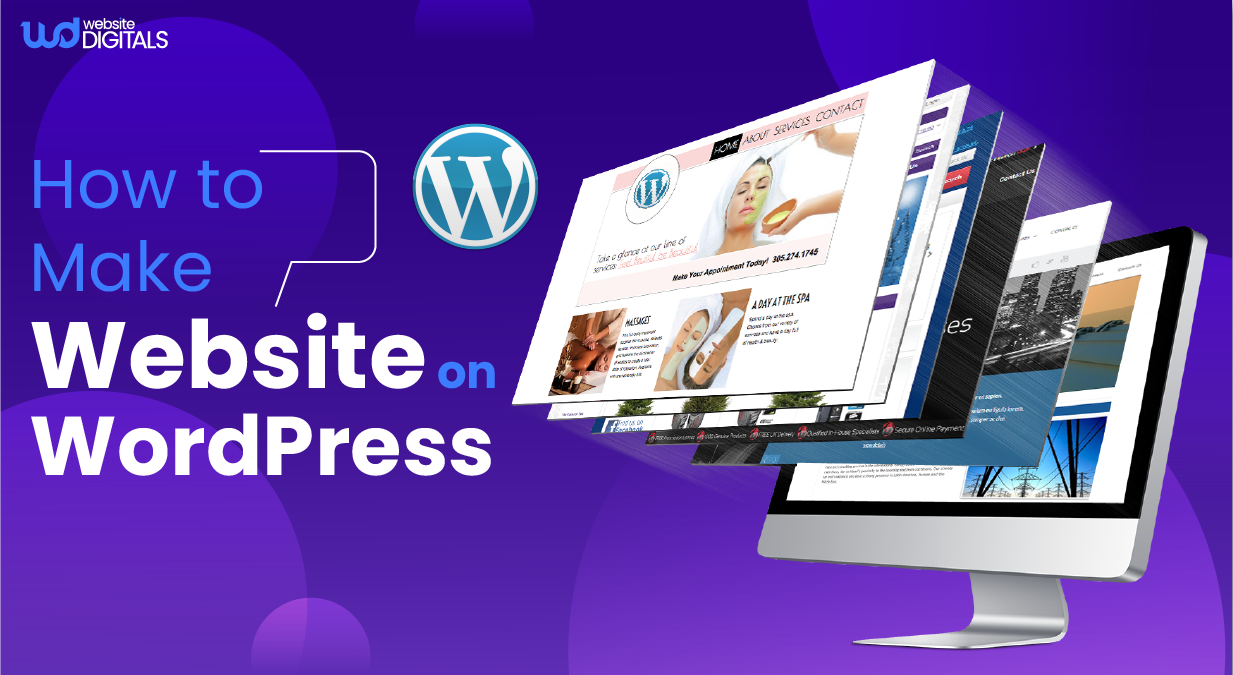
How to Make a Seamless E-commerce Website on WordPress for Your Business
Anyone can launch an online store. But building one that feels premium, earns trust instantly, and scales without limits is a different game.
If you are frustrated with restrictive templates, limited checkout settings, and platforms that charge you more as you grow, it is time to explore how to make website on WordPress the right way using this open-source platform and its effective WordPress CMS flexibility.
According to W3Techs, WordPress now leads more than 43.2% of the web, which proves that serious e-commerce brands choose flexibility and full ownership.
With advanced payment options, customizable checkout journeys, and fast, conversion-driven performance, WordPress lets your store scale without limits.
Templates do not build trust, experience does.
In e-commerce, success is not about simply looking good. It comes from creating a smooth, seamless buying journey that makes every customer confident enough to complete the purchase.
As John Ruskin said,
“Quality is never an accident. It is always the result of intelligent effort.”
With WordPress, you are not just launching a store. You are creating a high-performance buying experience designed to convert and scale.
Key Takeaways
- Seamless e-commerce success comes from flexibility, control, and the right platform choice.
- WordPress and WooCommerce offer full ownership of design, data, and checkout experience.
- Strong foundations like fast hosting, responsive themes, and essential plugins drive performance.
- Speed, clarity, and trust-focused UX improve conversions across the buying journey.
Why a Seamless Online Experience Can Make or Break Your Business
Imagine walking into a store with dim lights, confusing aisles, and slow checkout counters.
You’d leave instantly, right?
The same happens online.
When a website feels clunky, loads slowly, or creates friction during checkout, customers bounce and rarely return.
Modern shoppers expect clarity, speed, and a frictionless path from browsing to purchase.
Research confirms the impact:
- 57% of users won’t recommend a business with poor mobile design
- 70% of carts are abandoned because checkout takes too long or feels complicated
A seamless experience isn’t just about looking good. It is about guiding the buyer smoothly, earning trust at every click, and removing anything that slows down the decision to buy.
Why WordPress Stands Out for E-commerce
WooCommerce powers over 28% of online stores worldwide, making WordPress one of the most trusted platforms for online retail.
What sets WordPress apart is control without compromise:
- Custom checkout flows designed for conversions
- Unlimited design flexibility for brand consistency
- Scalable performance as traffic and sales grow
- Full ownership of your site, data, and user experience
Instead of adjusting your business to fit platform limitations, WordPress lets you design a store that supports your vision, not restricts it.
With WordPress, you build an online experience that works like a modern storefront should: fast, intuitive, and built for growth.
|
In short: With WordPress, own your platform, own your customer experience, and own your success. |
Step-by-Step Guide: How to Build a Seamless E-commerce Website on WordPress
Now that you understand why a seamless user experience is crucial, let’s check out the practical steps of setting up your own WordPress for e-commerce store.
Step 1: Define Your E-commerce Goals
Before writing a single line of code, clarify:
- What you want your store to achieve.
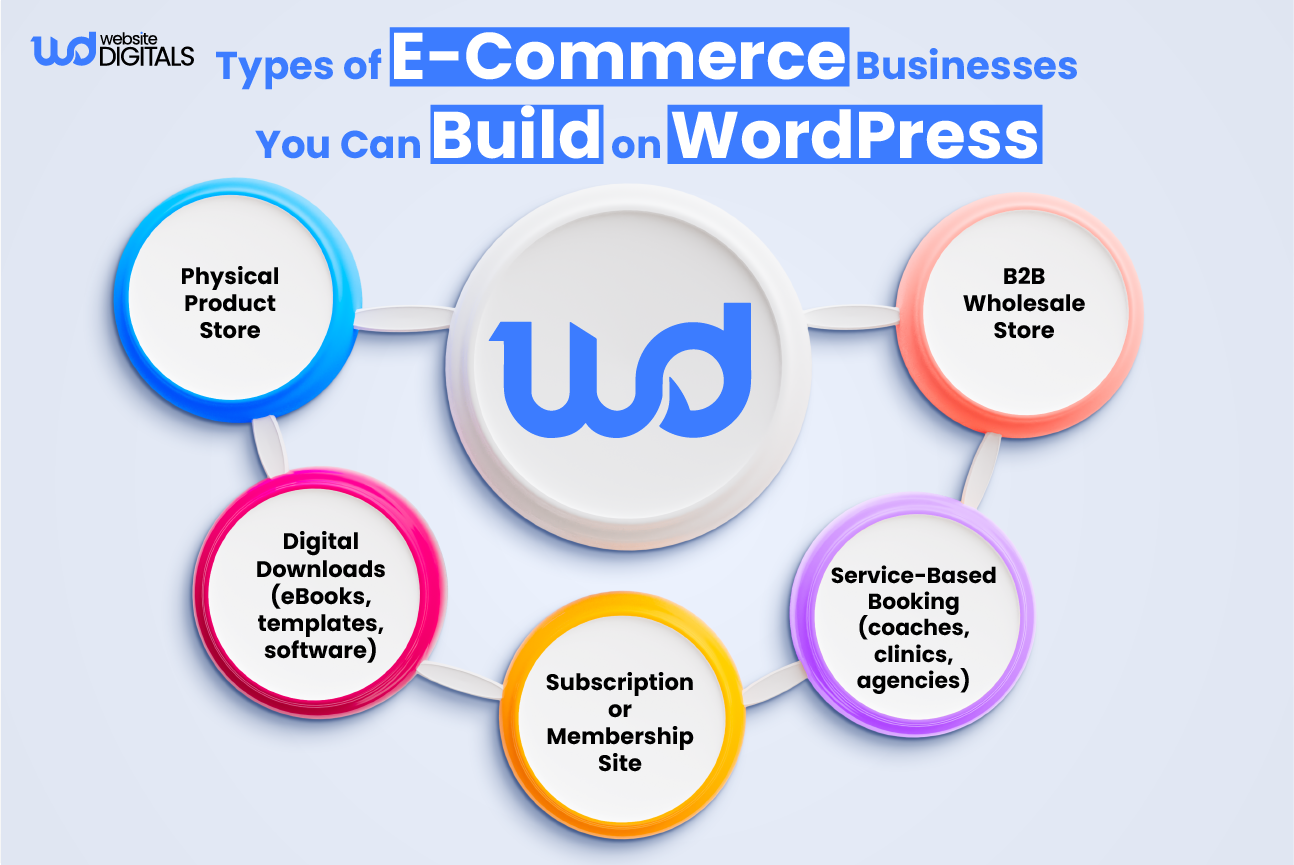
- Are you selling physical products, digital downloads, or services?
- Do you want to target local customers or go global?
|
Things to Consider:
|
|
Real-World Scenario: A jewelry business tripled conversions after defining its niche as “custom handmade engagement rings” — a long-tail focus that drove qualified traffic. |
Step 2: Choose Reliable Hosting and Domain
A smooth online experience starts with fast, reliable hosting and a professional domain name.
A smooth online experience starts with fast, reliable hosting and a professional domain name. These are the first essential steps in learning how to develop a website with WordPress for long-term growth.
Best Practices:
- Pick hosting optimized for WordPress (e.g., SiteGround, Kinsta, Bluehost).
- Ensure the hosting offers SSL certificates, daily backups, and scalability.
- Keep your name in domain registration simple, brandable, and easy to spell.
|
Bonus Tip: Bundle your domain and WordPress hosting with one provider for seamless setup and renewal management. |
Step 3: Install WordPress and WooCommerce
Installing WordPress today is as easy as a few clicks. Most hosts offer one-click WordPress installs, which is often considered the easiest way to build a WordPress website for beginners and business owners.
Once it’s live, head to the WordPress dashboard and install WooCommerce, the free plugin that turns your site into a complete e-commerce store.
|
Note: While WooCommerce is free, advanced functionalities (like subscriptions or memberships) may require paid extensions. |
Step 4: Select a Responsive E-commerce Theme
Your theme sets the stage for how users perceive your brand. Choose a responsive and SEO-friendly WordPress theme built for performance.
Top Recommendations:
- Astra: Lightweight and fully customizable
- OceanWP: Great for multi-category stores
- Storefront: Official WooCommerce theme with high compatibility
|
Things to Consider:
|
Key E-commerce Pages Your WordPress Store Must Have
|
Page |
Purpose |
|
Homepage |
Establish trust, highlight offers & value |
|
Product Pages |
Display product details, images, price & CTA |
|
Category Pages |
Help users find products by type quickly |
|
Cart & Checkout |
Deliver a smooth, friction-free purchase |
|
Policies (Shipping, Returns, Privacy) |
Build trust with transparency & compliance |
These foundational pages ensure your store feels complete, credible, and conversion-ready.
Step 5: Add Essential Plugins for a Seamless Experience
Plugins are the backbone of any powerful WordPress website, and in modern web development, choosing quality over quantity leads to better performance and stability.
Must-Have plugin categories:
- Security plugins such as Wordfence or Sucuri.
- SEO optimization settings using Rank Math or Yoast SEO.
- Speed tools like WP Rocket or WordPress caching plugins (W3 Total Cache).
- WordPress backup plugins such as UpdraftPlus.
- Analytics tracking via MonsterInsights or GA4.
|
Pro Tip: Stick to fewer than 20 active plugins for optimal performance. Deactivate and delete unused ones regularly. |
Step 6: Optimize for Speed, UX, and Mobile
Speed is a ranking factor, and slow pages hurt conversions. Using lightweight design tools like Gutenberg helps keep your store fast and efficient.
Optimization Checklist:
- Compress images using Smush or ShortPixel.
- Use caching plugins and CDNs like Cloudflare.
- Minimize scripts and enable lazy loading.
- Choose fast, reliable hosting (avoid shared servers).
|
Bonus Tip: Run monthly speed tests using Google PageSpeed Insights or GTmetrix to track Core Web Vitals, image compression, caching, and CDN performance for global traffic. |
Step 7: Integrate Payment Gateways and Checkout Options
A seamless payment experience is non-negotiable. WooCommerce supports multiple gateways like Stripe, PayPal, Razorpay, and Square.
Enable guest checkout, add trust badges, and consider one-page checkout templates to reduce friction. Ensure SSL encryption for secure payments and customer confidence.
|
Things to Consider:
|
Step 8: Test, Secure, and Launch
Before you go live, test everything from navigation and product filters to checkout and emails so your WordPress online store setup runs smoothly from day one.
Checklist Before Launch:
- Review your site on desktop, mobile, and tablet to ensure your responsive theme displays correctly across all devices.
- Verify payment gateways with test transactions.
- Set up daily automated backups (UpdraftPlus or Jetpack VaultPress).
- Harden site security with strong passwords, two-factor authentication, and limited admin access, and test changes in a staging site before going live.
|
Disclaimer: Always review your local e-commerce tax and privacy regulations before collecting payments or user data. |
How WordPress Helps You Sell More (and Scale Faster)
WordPress and WooCommerce together offer the perfect blend of customization, SEO power, and scalability, especially when supported by strong SEO plugins and fast hosting.
Here’s what makes WordPress unbeatable for business growth:
- SEO-Friendly Architecture: Clean URLs, schema markup, and mobile optimization.
- Complete Control: You own your data, design, and growth strategy.
- Community & Support: Access to thousands of developers, plugins, and tutorials.
|
Real-World Example: Good Dye Young saw a 305% revenue increase after integrating WooCommerce with Mailchimp for automated cart recovery and personalized product recommendations. |
|
Key Insight: Scaling isn’t about adding more plugins. It’s about optimizing what you already have and prioritizing customer experience. |
Overcoming Common E-commerce Challenges
Even the best-built websites face challenges. The key is being proactive.
- Challenge 1: Site Speed Drops During High Traffic
- Solution: Use CDN, enable caching, and upgrade hosting plans.
- Challenge 2: Payment Gateway Failures
- Solution: Offer backup gateways (e.g., Stripe + PayPal).
- Challenge 3: Plugin Conflicts
- Solution: Update plugins regularly and test on staging sites.
|
Things to Consider: Always monitor your site’s uptime and performance metrics because downtime costs money. |
Conclusion: The Path to a Seamless WordPress E-commerce Store
Learning how to make a website on WordPress that truly converts isn’t about being overly technical.
It’s about making smart, strategic decisions from the start. When you pair fast hosting, a clean and responsive theme, essential plugins, and strong UX principles, you are not just launching a site.
You are building a brand experience that customers feel confident returning to.
If you’re ready to turn your idea into a high-performing WordPress e-commerce store that drives sales and feels effortless for customers to shop, Website Digitals is here to support you.
Our experts build fast, conversion-driven websites engineered for long-term scalability and brand growth.
We also serve diverse industries, offering specialized WordPress development services for healthcare, fintech, real estate, event management, and restaurant brands that require secure, compliant, and reliable digital experiences.
Take the next step toward a seamless digital storefront that reflects your brand and converts consistently.
Visit Website Digitals to get started, or reach out directly at (646)-222-3598 or info@websitedigitals.com for a consultation.
Frequently Asked Questions:
Is WordPress good for e-commerce compared to Shopify or Wix?
Yes. WordPress gives you full ownership, flexibility, and SEO benefits at a fraction of the cost. It’s ideal for growing businesses that want control.
Do I need coding skills to build a WordPress e-commerce site?
No. Drag-and-drop builders like Elementor make it simple to design without coding.
How do I choose the right payment gateway?
Pick one that supports your currency, offers low fees, and integrates smoothly with WooCommerce.
How much does it cost to create an e-commerce website on WordPress?
Expect a range of $200–$1000 for domain, hosting, premium theme, and essential plugins — still lower than SaaS platforms.
What are the best plugins for UX and performance?
Elementor for design, WP Rocket for speed, and Rank Math for SEO.
How do I secure my WordPress e-commerce site?
Use SSL, Wordfence, regular backups, and update all themes/plugins frequently.
How can I scale my e-commerce site as my business grows?
Upgrade hosting, use CDN, optimize database, and automate marketing through plugins like Mailchimp or HubSpot.
Is learning how to create a business website on WordPress different from building a personal blog?
Yes. A personal blog focuses mainly on publishing content, while a business website requires features like lead capture, e-commerce functionality, payment options, and conversion-focused design to support growth and sales.
Is hiring Website Digitals developers necessary when figuring out how to build a WordPress e-commerce site?
Not necessarily. Beginners can build stores using visual builders and templates, but hiring a developer can speed things up and ensure advanced custom features are done professionally.
How long does it take to understand how to create a WordPress online store if I’m a beginner?
Most beginners can launch a basic store in a day, but refining design, product pages, and checkout flow may take a few days, especially if you want a professional, polished result.
Can hosting providers guide me on how to install WordPress step by step?
Yes. Reputable hosts offer built-in setup wizards, tutorials, and support articles that walk you through installation from start to finish.
What plugins do I need for a WordPress website?
You’ll typically need plugins for design, security, caching, and SEO. The specific tools depend on your site goals, so start with essentials and add only what you need.
What are the best themes for a business website on WordPress?
Business-friendly themes like Astra, Kadence, and GeneratePress offer fast performance, clean design, and customization options suitable for professional websites.
How do I set up WordPress hosting?
Choose a reliable hosting provider, purchase a plan, and connect your domain. Most hosts include a one-click WordPress installation to get your site running quickly.
What e-commerce WordPress design services does Website Digitals offer?
These services help you build a custom, conversion-focused online store on WordPress, including design, checkout setup, product layouts, mobile optimization, and user experience improvements.
How to decide between Elementor and Gutenberg for your site design?
Elementor provides more visual design control and advanced styling features, while Gutenberg is built into WordPress, lightweight, and great for performance. Choose Elementor if you want deep customization, and choose Gutenberg if you prefer fast, clean, and efficient editing.