The Easiest Way to Build a Professional WordPress Website for SMBs and Startups
For most small businesses, launching a website feels like an uphill battle due to too many tools, too little time, and not enough technical know-how.
That’s where WordPress makes things easier.
It supports over 532 million websites around the world, it gives business owners a simple and flexible way to build something that looks professional without the usual headaches.
The easiest way to build a WordPress website isn’t about being tech-savvy, but about using the right structure from the start.
In this guide, you’ll learn how to build a website that not only looks professional but works like a full-time digital sales engine for your business.
Key Takeaways
|
How to Build a Professional WordPress Website (Simple Guide for SMBs & Startups)
Let’s break down the process into seven simple steps, the easiest way to build a WordPress website that looks professional and performs well.
Step 1: Define Your Goals
Before writing a single line of content, define what you want your website to achieve.
- Are you looking to generate leads
- Drive sales
- Or simply build brand credibility?
Clear goals determine the layout, features, and calls-to-action you’ll include later.
For example, a healthcare startup might focus on patient bookings, while an SMB may want to highlight services and case studies.
If you plan to scale, note that WordPress supports advanced integrations like HubSpot, Google Analytics, and CRM tools as your marketing matures.
Step 2: Choose Reliable Hosting
The foundation of your website’s performance lies in your website hosting.
Choose a WordPress-optimized hosting partner who is known for reliability, speed, and SSL certificate support.
Look for:
- One-click WordPress installation
- Automatic backups
- 24/7 support
- Fast load times and U.S. data centers
Your hosting choice directly impacts site speed, uptime, and user experience, all critical ranking factors for search engine optimization (SEO).
Step 3: Install WordPress & Pick a Theme
One-click installs and manages hosting options.
Use the host control panel to run the install wizard, set an admin user, and choose basic site details.
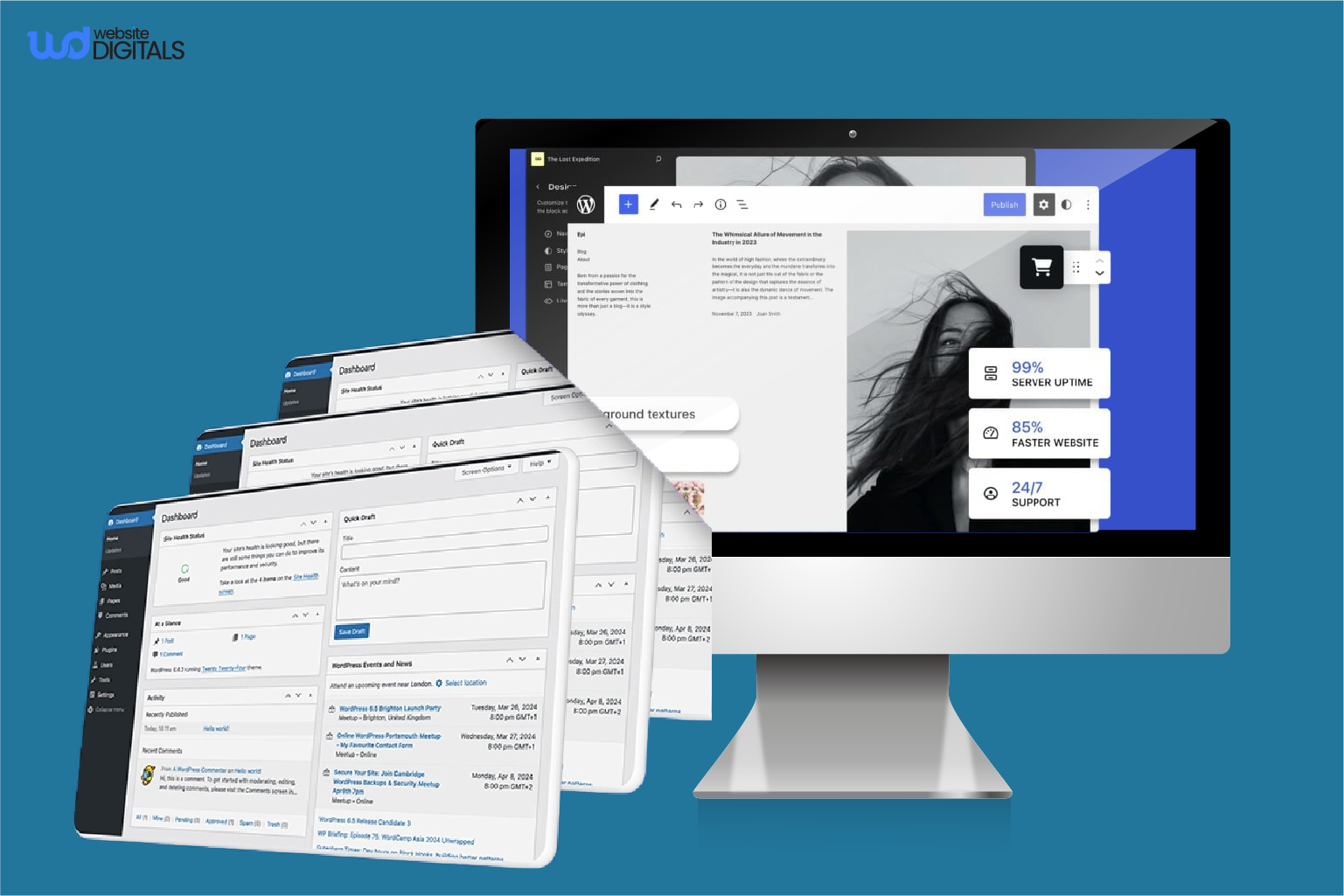
You then log in at yoursite.com/wp-admin to open the WordPress dashboard and check Posts, Pages, Appearance, Plugins, and Settings.
- Change the default admin name, enforce strong passwords, and enable two-factor authentication where possible.
- Enable SSL and force HTTPS site-wide for security and trust.
- Use staging on managed hosting to test updates before pushing to the live website.
Once you’ve set up WordPress, choose a responsive WordPress theme that aligns with your brand.
Popular lightweight options like Astra, GeneratePress, or the Divi theme provide clean, professional layouts that can be customized without code.
Focus on:
- Mobile-friendly design
- Fast performance
- Compatibility with drag-and-drop page builders
If you’re building for a specific industry, consider niche themes such as WordPress development services for healthcare or education templates.
These give you a head start with relevant layouts and features.
Step 4: Customize with Builders & Plugins
Customization is where your website takes shape. If you’re learning how to develop a website with WordPress, tools like Elementor or Gutenberg make it easy to design pages visually without touching code.
They make layout control intuitive, add sections, buttons, images, and forms by simply dragging elements into place.
Essential WordPress plugins to install:
- Yoast SEO or Rank Math for optimizing content.
- Wordfence or iThemes Security for safety.
- UpdraftPlus for backups.
- WP Rocket or LiteSpeed Cache for website speed optimization.
Each plugin serves a purpose, but keeps your setup lean; too many can slow performance.
Note:
|
Keep the stack lean and validate each plugin’s updates, ratings, and compatibility before install. |
Step 5: Refine Brand & User Experience
Design consistency builds trust.
Your website should mirror your brand’s identity across every page, color, font, logo, and tone.
Keep navigation simple so visitors find what they need quickly.
Focus on user experience (UX):
- Clean, scannable layouts.
- Clear contact options (form, phone, or booking links).
- Short, persuasive copy that guides users to act.
A well-structured site feels professional, builds credibility, and supports your business goals.
Tip:
|
Include trust signals, testimonials, certifications, or security badges to increase visitor confidence. |
Step 6: Optimize for SEO & Conversions
Even a beautiful site needs visibility. Basic SEO for WordPress ensures your pages appear when potential customers search for your services. Start with:
- Keyword-rich meta titles and descriptions.
- Internal linking between pages (e.g., from your blog to your services page).
- Fast load times and mobile-friendly design.
- Secure HTTPS connection via SSL.
Add schema markup and alt text to help Google NLP understand your content contextually.
Also, set up Google Analytics to track visitor behavior and identify what converts best.
For conversions, use prominent CTAs, “Book a Call,” “Request a Quote,” or “Get Started.”
Simple, action-oriented language converts better than generic “Learn More” buttons.
Real-World Case Study – Nutribullet – +35% ecommerce conversion rate after WooPayments
|
After integrating WooPayments on their WordPress/WooCommerce site, Nutribullet reported a 35% lift in conversion rate. Source: Nutribullet Case Study |
|
Plugin |
Key Features |
Ease of Use |
Ideal For |
|
Yoast SEO |
Keyword optimization, schema markup, readability check |
Easy |
Beginners |
|
Rank Math |
Advanced analytics, automation, and multiple focus keywords |
Moderate |
Growing SMBs |
|
All-in-One SEO |
XML sitemaps, smart meta titles, WooCommerce support |
Easy |
E-commerce sites |
Step 7: Test, Launch & Maintain
Before going live, review your website on desktop, tablet, and mobile.
Test all forms, buttons, and links. Confirm that your site loads quickly and looks professional across browsers.
Pre-launch checklist and go-live steps
Before launch, verify SSL, permalinks, and the sitemap, as well as forms, navigation, and mobile responsiveness work across major browsers.
- Check titles, meta, canonical tags, and robots rules so search engines can index the site.
- Validate Core Web Vitals and optimize any slow pages before going live.
- Ensure legal pages and policies are visible and accurate for trust and compliance.
- Remove staging no-index flags and confirm backup/rollback settings in case a plugin conflict appears.
Post-launch analytics and improvements
After launch, do submit the sitemap in Google Search Console and set analytics goals for key conversions. Then monitor traffic and user flows, then iterate on CTAs, content, and layouts.
- Schedule a 30-day review for performance, rankings, and user feedback.
- Keep publishing posts and expand pages strategically to grow organic visibility.
- Maintain backups and a rollback plan so we can recover quickly if needed.
Wrapping It Up!
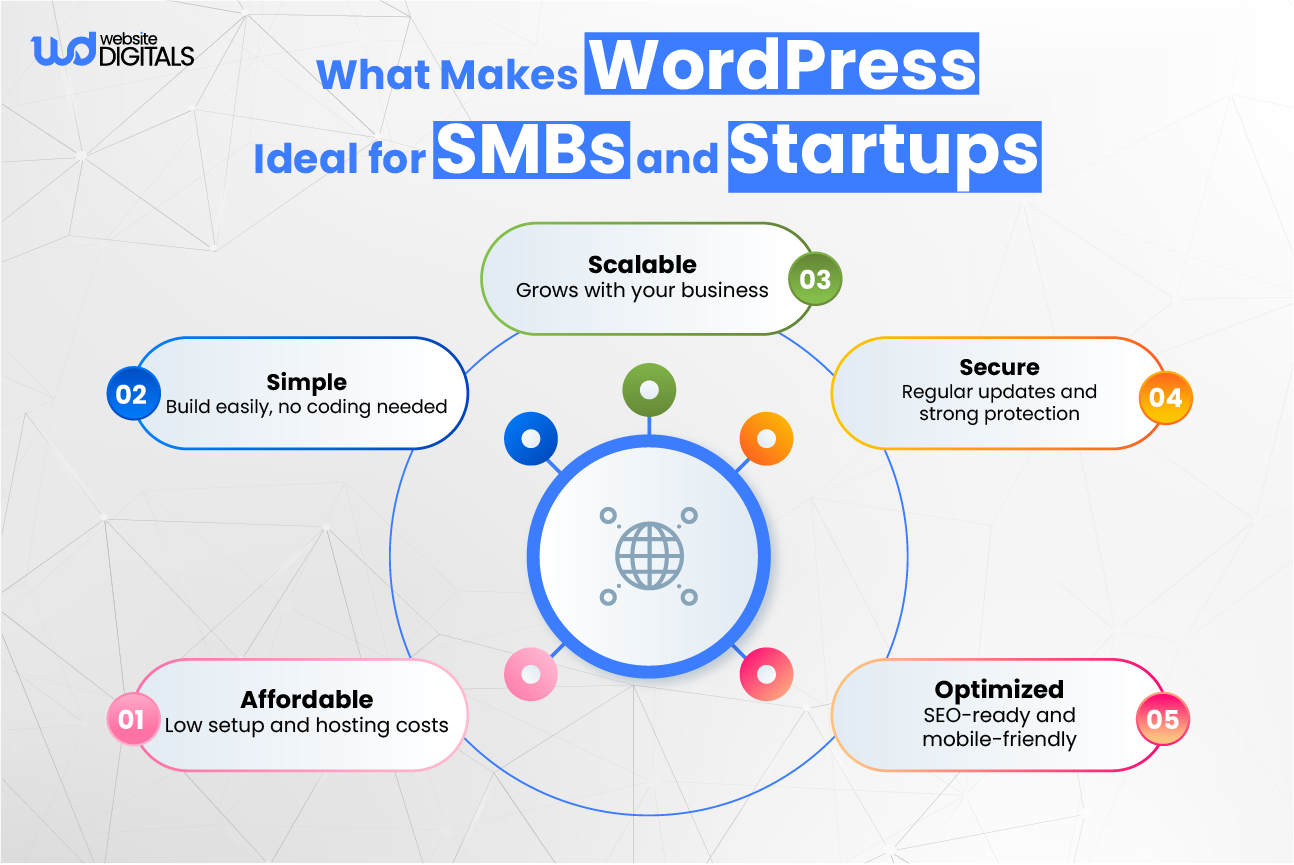
For SMBs and startups, the easiest way to build a WordPress website is to combine the right tools with a clear plan. WordPress offers flexibility, scalability, and cost efficiency that few other platforms match.
While some compare Wix vs Google Sites, these tools often limit customization, scalability, and ownership, factors that matter most to growing businesses.
With WordPress, you get the best of both worlds: simplicity for beginners and depth for future expansion.
Whether you’re launching your first company site or upgrading an outdated one, this approach lets you go from concept to live website quickly and professionally.
Need Expert Help? Build It Right from the Start
Web development isn’t complicated when you know the right steps, but it’s most effective when handled by professionals who align design, strategy, and performance seamlessly.
At Website Digitals, our WordPress development services help SMBs and startups create websites that look professional, load fast, and generate measurable business results.
Let’s talk about your website goals and build a WordPress site that works for your audience and your brand. Reach out to us (646)-222-3598 or email info@websitedigitals.com to get started today.
FAQs
How does Website Digitals help SMBs and startups build a WordPress website easily?
At Website Digitals, we simplify the entire process, from planning and design to hosting, optimization, and launch. Our team handles everything so SMBs and startups get a professional, high-performing WordPress website without dealing with technical setup or coding.
Why choose Website Digitals for WordPress development services?
We provide complete web development and maintenance under one roof. Whether it’s theme customization, plugin integration, or SEO setup, Website Digitals focuses on building fast, secure, and conversion-ready sites that support long-term business growth.
What is the easiest way to build a WordPress site for beginners?
The easiest way is to use WordPress.org with a one-click install on a reliable hosting provider, select a lightweight theme, and use a drag-and-drop page builder such as Elementor for customization, no coding required.
Is there a simple WordPress website setup guide for non-technical users?
Yes. Choose managed hosting, install WordPress automatically, pick a responsive WordPress theme, add essential WordPress plugins, and customize pages visually. Following these steps keeps the setup easy even for beginners.
How long does it take to build a WordPress website from scratch?
A basic site can go live in one to two days using pre-built themes and templates. A more custom build may take a week or two, depending on design revisions and content preparation.
What are the best WordPress website-building tips for small businesses in the U.S.?
Use a clean theme, optimize for mobile-friendly design, secure hosting, and install an SEO plugin such as Yoast SEO. Keep pages concise, focus on loading speed, and update content regularly.
Which is the easiest option, WordPress.org vs WordPress.com?
WordPress.org offers more flexibility and full ownership, making it better for businesses. WordPress.com is managed but limits customization. For SMBs aiming to scale, WordPress.org is the easiest long-term solution.
What hosting do I need to build a WordPress website easily?
Select managed WordPress hosting with one-click installation, automatic backups, and SSL certificate support. U.S.-based providers with strong uptime and support ensure smooth performance.
What are the best plugins for an easy WordPress website build?
Key plugins include Elementor (page builder), Yoast SEO (optimization), Wordfence (security), UpdraftPlus (backup), and WP Rocket (speed). Together, they keep your site functional and beginner-friendly.
How do I choose a theme to make my WordPress website easy to manage?
Pick a responsive and lightweight theme like Astra, GeneratePress, or Divi Theme. These work well with page builders and let you design quickly without coding knowledge.