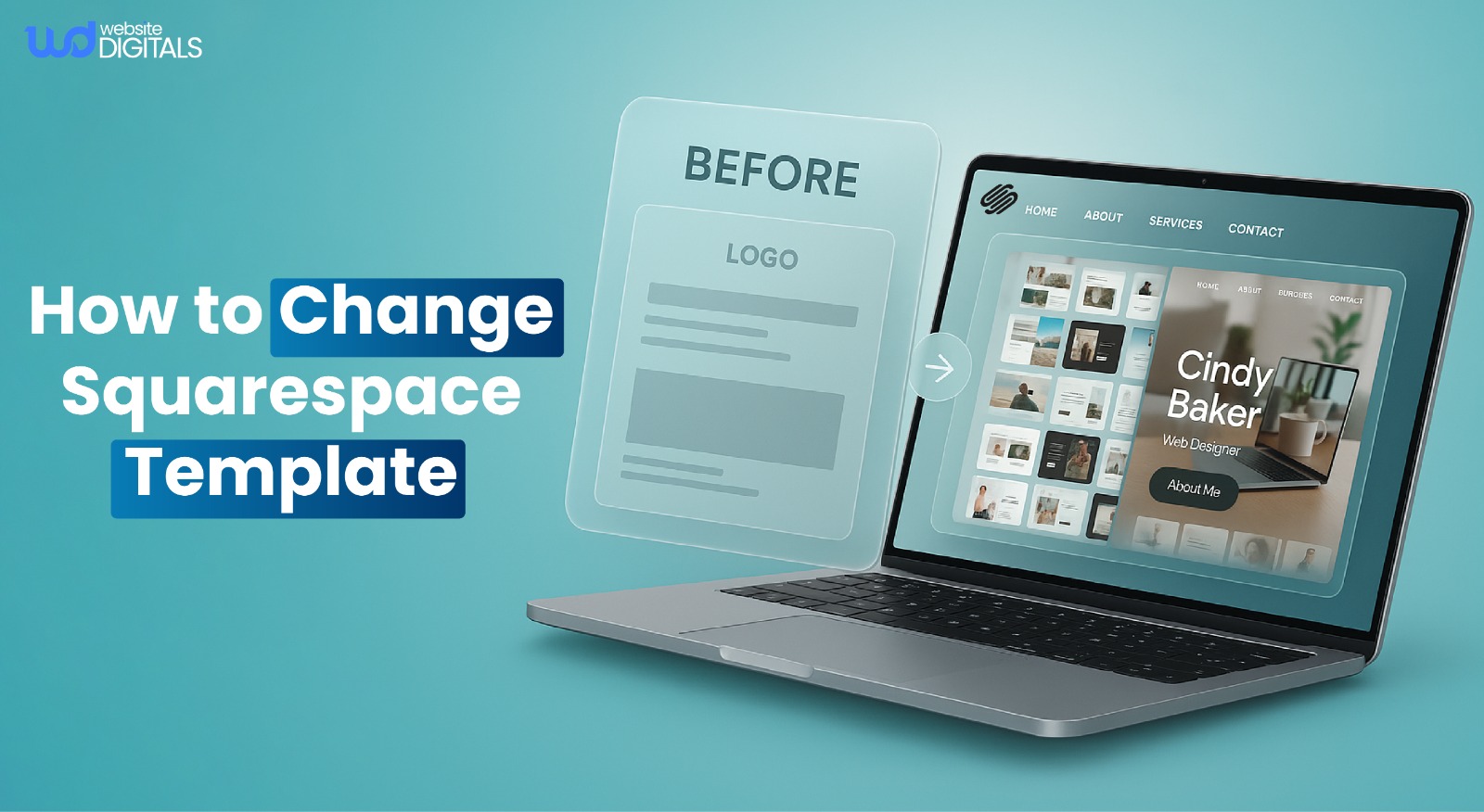
How to Change Squarespace Template Without Losing SEO or Site Performance
Have you ever hovered over the “Switch Template” button on Squarespace and felt a wave of panic? You’re not alone.
Many site owners freeze at the thought of redesigning, worried about broken layouts, lost traffic, or tanked SEO.
If you’re wondering how to change Squarespace template without all that risk, here’s the good news: it’s totally possible. With a careful plan, you can refresh your site’s design, keep your SEO intact, and even improve speed and engagement.
In this guide, I’ll walk you through the step-by-step process to switch your Squarespace template safely, so you can update your site confidently and without stress.
Key Takeaways
- Discover the exact steps to change a Squarespace template safely and strategically.
- Learn how to preserve rankings, metadata, and site speed during a redesign.
- Find out how to test your new template in Preview Mode before publishing.
- Understand why Squarespace 7.1’s updated structure and schema give you an SEO advantage.
- Get expert tips to future-proof your website with better UX and design flexibility.
Why Changing Templates Matters for Your Brand
Updating your Squarespace template isn’t just about aesthetics, it directly affects your site’s performance, SEO, and brand perception.
Here’s why it matters:
1. Improve Website Speed and Performance
Older templates can slow down your site, leading to longer load times and higher bounce rates.
Modern Squarespace templates are optimized for speed, helping your pages load faster and keeping visitors engaged.
2. Enhance Mobile User Experience
With over half of web traffic coming from mobile devices, a responsive, modern template ensures your site looks great and functions smoothly on all screen sizes.
Better mobile experience increases user retention and engagement.
3. Boost SEO and Search Rankings
Google prioritizes sites that perform well in Core Web Vitals, speed, responsiveness, and stability.
Updating your template aligns your site with these standards, improving visibility in search results.
4. Modernize Your Design for Brand Credibility
A fresh, professional template signals trustworthiness and authority.
Outdated designs can make visitors question your brand’s relevance and reliability, while a modern layout builds confidence and encourages conversions.
5. Increase Engagement and Conversions
A well-designed template makes navigation intuitive, highlights your products or services, and creates a smoother user journey.
Sites that undergo a strategic redesign often see up to a 30% increase in user engagement, leading to higher conversion rates.
Real-World Scenario:
A boutique apparel brand switched templates without proper preparation or redirect mapping. Within a week, traffic dropped by nearly 40% due to missing 301 redirects and an outdated sitemap.
After restoring redirects, compressing image files, and resubmitting the sitemap to Google Search Console, the site recovered in three weeks and achieved noticeably faster load times.
How to Change Squarespace Template Without Losing SEO
Changing your Squarespace template isn’t just a design update, it can impact several SEO-critical elements that influence how search engines crawl, index, and rank your site.
1. Preserve URL Structure
Maintain your existing page slugs when switching templates.
Changing URLs can create broken links and hurt your rankings.
Keeping URLs consistent ensures search engines continue to recognize your content.
2. Maintain Internal Linking
A connected site structure is essential for SEO.
Make sure internal links remain intact to prevent orphaned pages and preserve the flow of link authority across your site.
3. Optimize Page Speed and Core Web Vitals
New templates can affect load times. Optimize images, media, and layouts for fast loading.
- Google’s Core Web Vitals
- Largest Contentful Paint (LCP)
- Cumulative Layout Shift (CLS)
- And First Input Delay (FID), are critical ranking factors.
4. Retain Metadata and Schema Markup
Keep all page titles, meta descriptions, and structured data intact.
These elements help search engines understand your content and display rich results.
5. Ensure Mobile Responsiveness and Accessibility
Your new template should adapt seamlessly to mobile devices and meet accessibility standards.
Mobile usability is a key ranking signal and improves user experience for all visitors.

Step-by-Step Guide: How to Change Your Squarespace Template Safely
Step 1: Audit Your Existing Website (SEO and Design)
Start by gathering key performance data before making any changes.
This helps you benchmark results and identify what works best on your current setup.
- Export keyword and performance data from Google Search Console.
- Test your site’s speed using PageSpeed Insights or Lighthouse.
- Record layout elements, navigation flow, and top-performing pages.
Bonus Point: Create a benchmark sheet to compare SEO metrics before and after the migration.
Step 2: Choose Your New Squarespace Template Strategically
Select a design that aligns with your brand goals and user experience objectives.
The table below compares Squarespace 7.0 and Squarespace 7.1 so you can make an informed choice.
|
Feature |
Squarespace 7.0 |
Squarespace 7.1 |
|
Flexibility |
Limited |
Fully responsive |
|
Design Editor |
Basic |
Advanced style controls |
|
SEO Support |
Manual |
Built-in schema |
|
Speed Optimization |
Average |
Faster performance engine |
Examples of effective template use:
- Brine – suited for e-commerce brands.
- Rally – ideal for creative portfolios.
- Paloma – best for service-based websites.
- Bedford – ideal for Squarespace development for education platforms and learning institutes
Pro Tip: Note that in Squarespace 7.1, switching templates mainly means changing layouts and style families rather than moving between different theme systems.
Step 3: Preview and Test Before Publishing
Before making your new template live, use Squarespace’s Preview Mode to ensure everything functions as expected.
Validate both the visual design and technical SEO performance.
Check for:
- Schema and structured data validation using the Rich Results Test.
- Meta titles and descriptions accuracy.
- Proper alt text for images.
- Navigation and internal link consistency.
- Tracking codes (Google Analytics or Tag Manager) to prevent duplication.
Infographic Placement: “Template Change Checklist” comparing design and SEO readiness before and after migration.
Step 4: Launch and Monitor
When you’re ready to go live:
- Launch during off-peak hours to minimize disruption.
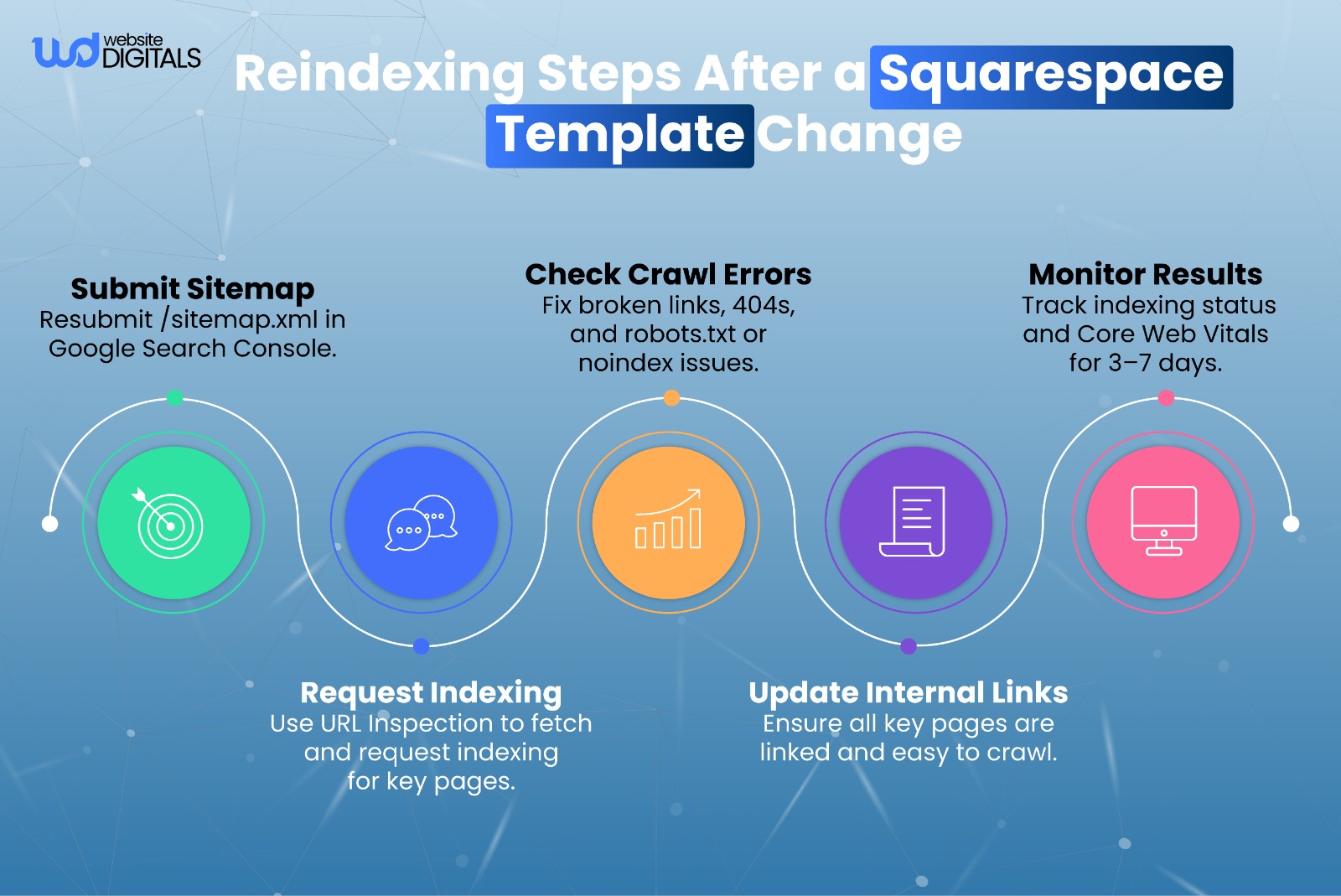
- Resubmit your sitemap.xml in Google Search Console.
- Review crawl errors, indexing status, and performance reports.
- Monitor rankings and Core Web Vitals (LCP, CLS, and INP) over the next few days.
- Confirm your site backup remains available until full stability is verified.
Important Note: Google typically reindexes within 3 to 7 days after a major site update.
Optimize and Future-Proof Your Squarespace Site
Post-Launch Optimization Steps
After changing your Squarespace template, run a post-launch optimization checklist to maintain and strengthen SEO performance.
- Recheck Core Web Vitals focus on LCP, CLS, and INP scores.
- Repair or redirect any broken links found during your crawl.
- Optimize new images with WebP or AVIF formats for faster load times.
- Reconnect GA4 and Google Tag Manager to confirm tracking accuracy.
- Validate canonical tags and robots.txt functionality.
Use tools like GTmetrix, Ahrefs Site Audit, or Screaming Frog for deeper technical scans.
Pro Tip: Keep your pre-launch backup active for at least 30 days after migration until traffic and indexing stabilize.
Real-World Scenario: Template Redesign Done Right
A local photography studio migrated to Squarespace 7.1 and applied structured optimization immediately after launch.
After compressing images, cleaning unused CSS, and validating redirects, page load time improved by 25% and organic sessions rose by 12% within one month.
Key Insight: You don’t always need a full rebuild. Small UX improvements like optimizing imagery, simplifying navigation, and improving internal link flow can make a measurable difference in SEO and engagement.
When to Bring in Professionals
If your site relies on custom code, custom Squarespace templates, e-commerce integrations, or advanced SEO plugins, it’s wise to consult a Squarespace Circle Member or certified designer.
They can help you migrate safely, troubleshoot post-launch issues, and ensure that your template update enhances rather than harms performance.
Advanced Optimization for AEO and GEO
Once your site is stable, take it a step further by optimizing for Answer Engine Optimization (AEO) and Generative Engine Optimization (GEO).
Answer Engine Optimization (AEO)
- Add FAQ schema to help your answers appear in voice search and AI snippets.
- Frame headings as questions to target conversational intent.
- Keep responses concise, ideally 40–60 words for voice-read clarity.
- Validate structured data with Google’s Rich Results Test.
Generative Engine Optimization (GEO)
- Reference authoritative entities such as Squarespace, Google Developers, and NNGroup to strengthen semantic context.
- Maintain a clear H2/H3 hierarchy and short, digestible sentences for AI parsing.
- Link to credible, high-quality resources to reinforce expertise and authority.
Bonus Tip: Add Organization and Person schema to enhance entity recognition and trust signals.
|
{ “@context”: “https://schema.org”, “@type”: “Organization”, “name”: “Your Brand Name”, “url”: “https://yourdomain.com”, “logo”: “https://yourdomain.com/logo.png”, “sameAs”: [ “https://www.facebook.com/yourbrand”, “https://www.linkedin.com/company/yourbrand” ] } |
This structured data helps search engines understand who you are, what you do, and how to represent your brand across AI-driven search results.
Conclusion: Redesign with Confidence
Switching to a new Squarespace template doesn’t mean starting from scratch.
With careful auditing, testing, and SEO discipline, you can give your brand a faster, more polished, and search-friendly redesign that aligns with modern web standards.
Remember, change is not the enemy of SEO instability. Keep your structure consistent, your content valuable, and your design strategically optimized.
If you need expert help executing a seamless Squarespace redesign, the team at Website Digitals can guide you through an SEO-safe template migration that preserves rankings and elevates performance.
Give us a call today at (646) 222-3598 or email us at info@websitedigitals.com to schedule your free consultation and start your seamless Squarespace redesign journey.
Frequently Asked Questions
1. Can I change my Squarespace template without affecting SEO?
Yes, you can change your Squarespace template without hurting SEO if you keep URLs, slugs, and metadata consistent. Squarespace preserves many redirects automatically, but it’s smart to double-check your 301 redirects and sitemap in Google Search Console after publishing.
2. What happens to my existing pages when I switch templates?
Your content remains intact. Only styling and layout change. However, review image alignment, spacing, and custom blocks to ensure consistent formatting across devices.
3. Will changing my template affect Google indexing?
Not significantly. If your URLs remain the same and you resubmit your sitemap, Google typically reindexes your site within 3 to 7 days. You can monitor progress in the Indexing and Pages reports in Search Console.
4. Is it possible to preview a new template before publishing?
Yes. Squarespace’s Preview Mode allows you to test how your site looks and functions without affecting the live version. Always test navigation, forms, and third-party integrations after publishing.
5. Can I go back to my old template if I don’t like the new one?
Yes, but only if you duplicate your original site or export your content before switching. It is best practice to create a backup version before making major design changes.
6. Does Squarespace 7.1 handle SEO better than 7.0?
Generally, yes. Squarespace 7.1 features cleaner HTML structure, built-in schema support, and faster load performance, all of which contribute to better SEO. However, both versions can rank well with proper optimization.
7. What are the best Squarespace templates for SEO?
Templates with lightweight code and responsive design perform best. Rally (7.1), Brine, and Bedford (7.0) are strong choices. Focus on clean navigation, fast media loading, and structured content hierarchy for optimal results.
8. Should I hire a Squarespace SEO expert for the migration?
If your site uses custom code, e-commerce features, or relies heavily on organic traffic, hiring an expert is wise. They can ensure your template change is SEO-safe and technically sound.
9. How can I check site speed after changing the template?
Use PageSpeed Insights, GTmetrix, or Squarespace Analytics to test load times. Focus on metrics such as LCP, CLS, and INP to gauge Core Web Vitals performance.
10. How long does it take Google to reindex my Squarespace site?
Typically, Google reindexes most Squarespace sites within 3 to 7 days, depending on crawl frequency, site authority, and content updates. Use Google Search Console to track progress and confirm successful indexing.