
How to Transfer Domain from GoDaddy to Squarespace with Zero Downtime Risk

Transferring your domain from GoDaddy to Squarespace might seem like a simple task, but for many business owners, it’s a nerve-wracking experience.
The thought of website downtime or losing crucial data during the transition is enough to make anyone hesitate.
According to industry studies, businesses lose an average of $5,600 per minute due to IT downtime.
But what if we told you there’s a way to transfer your domain without the risk of disruptions or data loss?
In this guide, we’ll walk you through the steps of how to transfer your domain from GoDaddy to Squarespace smoothly, ensuring your website stays active and your email service remains intact.
Ready to make the move?
Let’s get started.
Key Takeaways
|
What You Need to Know Before Starting the Domain Transfer Process
Before initiating a domain transfer, preparation is crucial to avoid any unexpected disruptions.
Here’s a checklist to ensure you’re fully ready to begin:
1. Confirm Your Domain is Eligible for Transfer
Not all domains are eligible for transfer.
Domains that have been registered or transferred within the last 60 days are locked and cannot be moved.
To check your domain’s eligibility, log in to your GoDaddy account and verify the registration date.
2. Backup Your Website and Emails
Backing up your website and emails is a crucial step before transferring your domain.
Even though Squarespace offers robust website hosting, backing up all your content, including images, posts, and email settings, ensures that you have a recovery plan in case anything goes wrong.
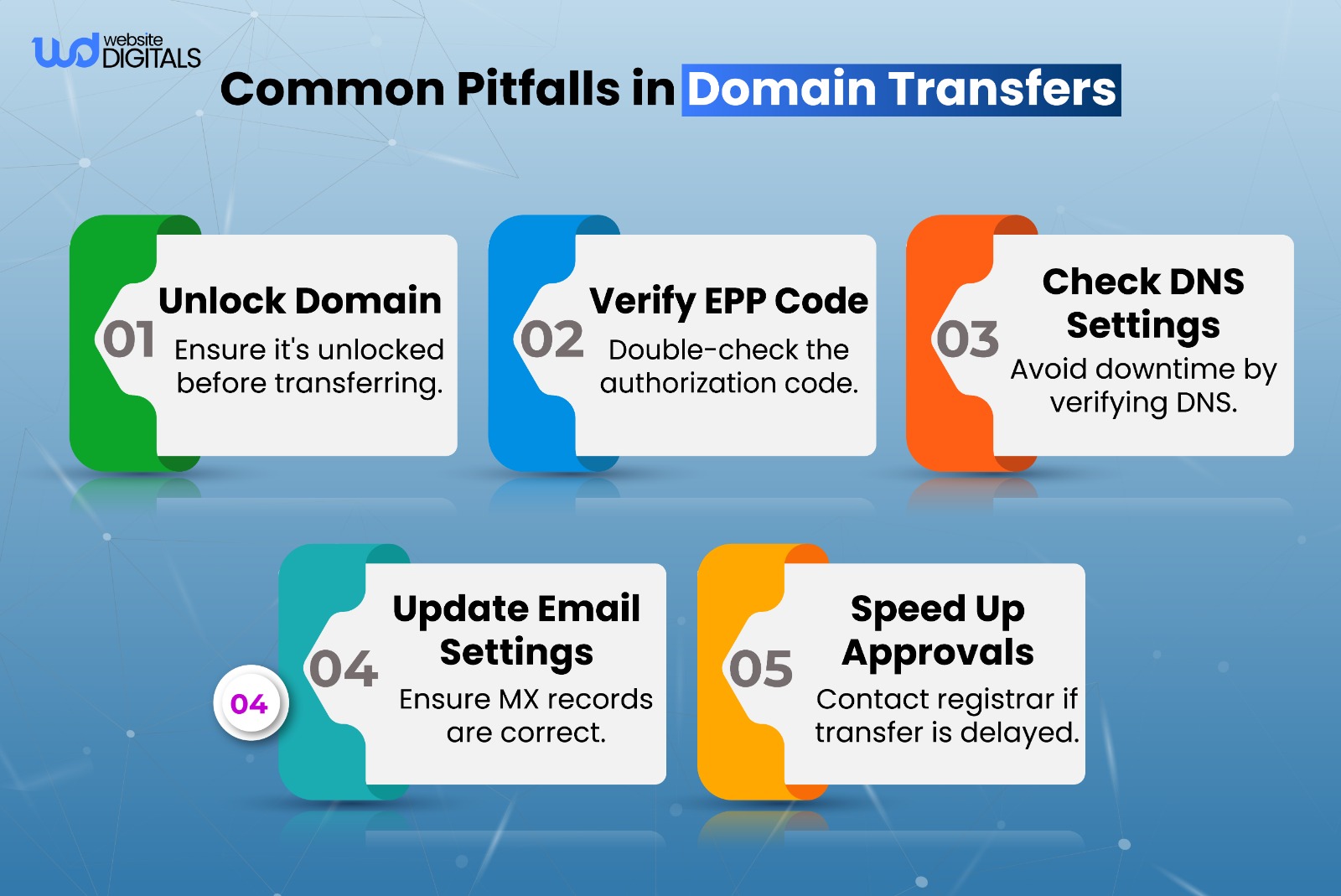
3. Unlock Your Domain and Get the Authorization Code
For your domain to be transferred, it must be unlocked.
Go to your GoDaddy account, unlock your domain, and request the Authorization Code (also known as the EPP code).
Squarespace requires this code to authorize the transfer.
4. Ensure Your Contact Information is Up to Date
Verify that your contact information (especially your email) is up-to-date with GoDaddy.
The transfer process requires an email to confirm that you initiated the transfer, so it’s important to ensure GoDaddy can contact you.
By following this checklist, you’ll be well-prepared to start the domain transfer without encountering unexpected challenges.
Real World Case Study:
|
GoDaddy enabled an entrepreneur to launch their website in under 60 seconds, demonstrating the ease of domain registration and hosting. As an ICANN-accredited domain registrar, GoDaddy offers a trusted, secure platform for domain management, making it a solid choice for those starting or transferring domains to platforms like Squarespace. |
How to Transfer Your Domain from GoDaddy to Squarespace Without Downtime
Now that you’ve completed the pre-transfer checklist, it’s time to initiate the domain transfer process.
The goal is to transfer your domain without disrupting your website or email services.
Step 1: Initiate the Transfer Process on Squarespace
The first step in transferring your domain from GoDaddy to Squarespace is to start the process within your Squarespace account.
Here’s how:
- Log in to your Squarespace account.
- Navigate to Settings > Domains.
- Click Use a Domain I Own and then select Transfer to Squarespace.
- Enter the domain name you want to transfer from GoDaddy.
At this stage, Squarespace will prompt you to enter the Authorization Code you received from GoDaddy.
Note:
|
If you’re deciding between platforms, you might ask, Is Squarespace or Wix better for your needs? Squarespace offers a more streamlined and professional experience with integrated domain and website management, making it ideal for businesses that want an all-in-one solution. |
Step 2: Choose Your Domain Settings
Squarespace will walk you through the setup process, where you can configure your domain settings.
If you’re asking yourself, Does Squarespace host domains, the answer is yes.
Squarespace provides an all-in-one solution for both website and domain management, ensuring your domain points to the right place once the transfer is complete, preventing any disruption to your website or email services.
Step 3: Configure DNS Settings to Prevent Disruptions
Your DNS settings control how your domain is connected to your website and email servers.
After initiating the transfer, it’s important to set up DNS records in Squarespace before the transfer is fully complete.
To avoid downtime:
- Update your DNS records in Squarespace before the transfer is finalized. This ensures your domain will still point to your current website until the transfer is complete.
- Check your email settings to ensure continuity. If you’re using GoDaddy’s email services, make sure your email settings are set up in Squarespace ahead of time.
By configuring your DNS ahead of time, you can avoid disruptions, keeping your website and email active throughout the entire transfer process.
Why DNS Settings Matter
Domain Name System (DNS) settings dictate how your domain is routed to the appropriate website or service.
Disclaimer:
|
If these settings aren’t properly configured, your domain could end up pointing to the wrong place, causing downtime or email service interruptions. |
What you need to do:
- Map the DNS Records Early: Before the transfer finishes, you can update your DNS records in Squarespace to match your current configuration.
- Set Up Email Forwarding: If your email is linked to your domain via GoDaddy, make sure to set up email forwarding or mail server settings in Squarespace to ensure no interruptions in your email service.

How to Keep Your Website Active
Ensuring that your website stays active during the transfer is the most critical concern for most business owners.
The key is in the timing of the DNS updates.
1. Update DNS Prior to the Transfer Completion
To prevent downtime, update your DNS settings in Squarespace before the transfer finishes.
This way, as soon as the transfer is complete, your domain will already be pointing to the correct website and services.
2. Use a Temporary URL
If you are moving from one website platform to another (such as from a custom-built site to Squarespace), you might want to use a temporary URL until the transfer is fully complete.
This ensures there is no downtime while your DNS settings are propagating across the internet.
Steps to Keep Email Running Smoothly
If your email is hosted by GoDaddy, maintaining email continuity during the domain transfer is critical. Here’s how you can do it:
Step 1: Check Your Email Hosting Settings:
If your email is provided by GoDaddy, make sure to update the MX records (Mail Exchange) in Squarespace before starting the transfer.
This will ensure that incoming emails are directed to the right server even during the transfer.
Step 2: Create an Email Backup:
It’s a good idea to back up your email data before initiating the transfer, especially if your email is critical for communication with customers or partners.
Squarespace doesn’t offer direct email hosting, but you can easily integrate email services like G Suite (Google Workspace) or Office 365 with your Squarespace domain.
Step 3: Monitor Your Email After the Transfer:
Once the transfer is complete, closely monitor your email to ensure that it’s being routed correctly.
If you encounter any issues, it’s important to address them immediately to avoid missing important communications.
What to Check After Your Domain Transfer is Complete
Once the transfer is complete, you’ll want to verify everything is working correctly. Here’s how:
1. Verify Transfer Completion
Go to your Squarespace account and check under Settings > Domains to confirm the transfer is complete.
You should see your domain listed as active, and your website should be accessible.
2. Ensure No Data Loss
Check your website and email thoroughly to ensure no data has been lost during the transfer.
This includes reviewing all web pages, images, posts, and email communication.
3. Final DNS Configuration Check
Once your domain is live on Squarespace, perform a final check of your DNS settings to ensure everything is pointing correctly.
Note:
|
You can use tools like DNSstuff or MXToolbox to verify that your records are properly configured. |
Comparing GoDaddy and Squarespace for Domain Hosting
|
Feature |
GoDaddy |
Squarespace |
|
Domain Registration |
Wide range of extensions, strong registrar infrastructure |
Domain registration integrated with the site/platform simplifies the domain + website in one place |
|
Email Hosting / Integration |
Native email hosting is available, but a separate setup is required |
Seamless integration with third‑party email services (e.g., Google Workspace), simplified for business use |
|
DNS Management |
Full control, advanced settings (more technical) |
Simplified DNS settings built into the platform, ideal for non‑technical users |
|
SSL Certificates |
Free SSL available (often tied to hosting) |
Free SSL included with every domain and hosting package, easy, no extra steps |
|
Customer Support & Platform Focus |
Strong support for registrar/domain tasks, phone support available |
Support emphasises full website/domain system, modern templates, and scale‑ready features |
|
Platform Comparison |
GoDaddy offers flexibility, but lacks the integrated website-building experience. |
While Wix offers more templates, Squarespace stands out with its seamless integration of domain hosting and web development tools. |
Conclusion
Transferring your domain from GoDaddy to Squarespace doesn’t have to be complicated.
By following the right steps, you can complete the transfer smoothly and ensure no disruption to your website or email services.
So, whether you’re moving to gain better website features or simplify your domain management, Squarespace offers a more user-friendly platform.
If you’re ready to make the move, our experts at Website Digitals are here to help.
For further assistance or questions on how to transfer domain from GoDaddy to Squarespace, feel free to reach out to us at websitedigitals@gmail.com or contact us at (646)-222-3598.
FAQs
- How can Website Digitals help with transferring my domain from GoDaddy to Squarespace?
At Website Digitals, we provide a seamless domain transfer experience. Our team will handle the technical aspects, including DNS configuration and email continuity, ensuring no downtime during the migration.
- Why should I choose Website Digitals for my domain transfer from GoDaddy to Squarespace?
Website Digitals specializes in simplifying domain transfers for businesses. We ensure your website stays active and your email is uninterrupted. With expert guidance through every step, we make the process hassle-free.
- How do I transfer my domain from GoDaddy to Squarespace?
To transfer your domain from GoDaddy to Squarespace, first unlock your domain in GoDaddy, then retrieve the Authorization Code. Next, initiate the transfer on Squarespace under Settings > Domains, entering the Authorization Code when prompted.
- Why should I transfer my domain from GoDaddy to Squarespace?
Transferring your domain to Squarespace offers ease of use with integrated hosting, simplified DNS management, and seamless website tools. If you’re looking for a more streamlined solution, Squarespace is the better choice.
- How long does it take to transfer a domain from GoDaddy to Squarespace?
Typically, the domain transfer process can take anywhere from 5 to 7 days. During this time, your website and email should remain uninterrupted if DNS settings are configured properly.
- What happens after I transfer my domain to Squarespace?
Once your domain is transferred to Squarespace, it will be fully managed within their platform. You’ll have access to their intuitive website builder and can easily adjust settings like DNS and email configurations.
- Can I keep my email when transferring from GoDaddy to Squarespace?
Yes, you can retain your email during the transfer by setting up email forwarding or configuring MX records within Squarespace before completing the domain transfer.
- What to do if the domain transfer from GoDaddy to Squarespace fails?
If the transfer fails, ensure your domain is unlocked and that the Authorization Code is correct. You may need to verify your contact information with GoDaddy. Contact Squarespace support if issues persist.
- How to initiate GoDaddy to Squarespace domain transfer?
To initiate the transfer, log into Squarespace, navigate to Settings > Domains, and select Transfer to Squarespace. Enter the Authorization Code you obtained from GoDaddy to complete the process.
- Is Squarespace better than GoDaddy for domain hosting?
While GoDaddy excels as a registrar, Squarespace is better for users looking for an all-in-one solution that combines domain management, website building, and hosting in one intuitive platform. Squarespace’s simplicity and integrated tools make it an excellent choice for businesses.